Create, refine, and extend musical ideas with hands on controls for genre, mood, structure, and track selection.
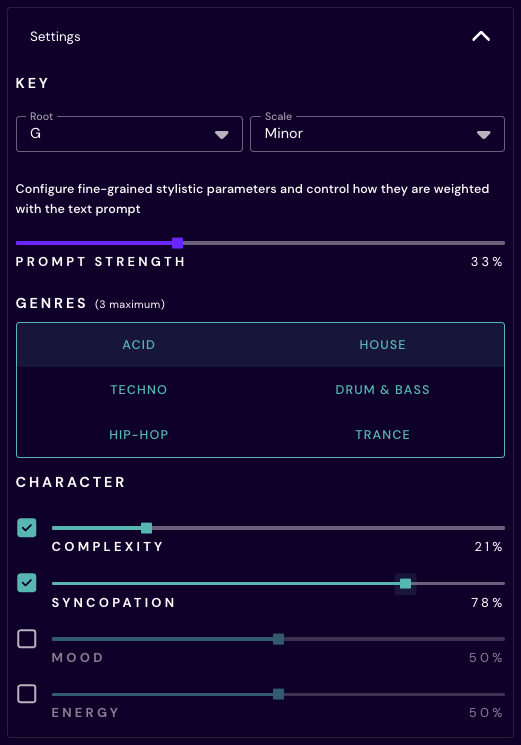
The Settings panel gives you a more hands on way to guide each generation. Choose a key and scale to set the harmonic foundation, then select up to three genres to steer the overall style. Genre choices help guide the rhythmic and musical language of the sequence, while the character controls let you fine tune how the result feels.
Complexity controls how dense or intricate the generated parts should be. Syncopation adjusts how much the rhythms push against the beat. Mood and Energy shape the emotional tone and intensity of the result. Each character control can be enabled or disabled, giving you a simple way to decide which settings should influence the generation.
Prompt Strength controls the balance between your text prompt and the selected musical settings. A lower value gives more influence to the genre, mood, and character controls. A higher value leans more strongly into the prompt. This lets you work visually, textually, or somewhere in between.
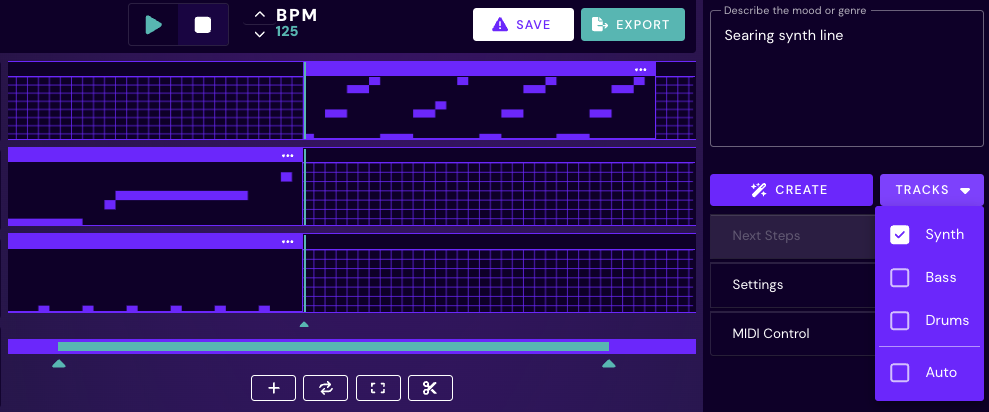
When you click Create, Beat Shaper generates new musical material and inserts it at the current playhead position in the arranger. By default, synth, bass, and drums are generated together so the parts can work as a connected musical idea. If you only want certain instruments, use the track selector to choose Synth, Bass, Drums, or Auto.
On the first generation, Beat Shaper also sets the project tempo based on the prompt or musical settings. Key, scale, synth lead patch, bass patch, and drum kit are also established as part of that first generated idea. You can change any of these manually afterward, but they will not be automatically reset on later generations. This keeps the track consistent as you continue building.
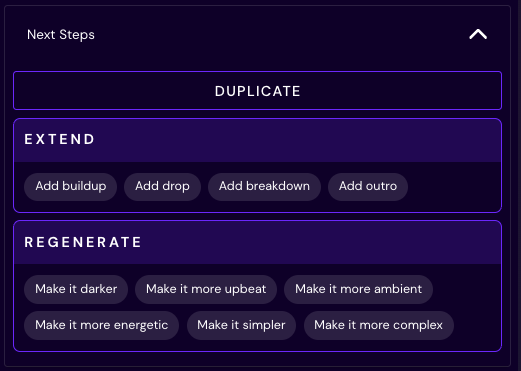
After a generation is created, the Next Steps panel becomes available. These tools apply only to the most recently created content and are designed for fast iteration.Duplicate copies the latest clips so you can quickly repeat a section. Extend adds new material directly after the most recently created clips, with options like buildup, drop, breakdown, and outro. Regenerate creates a new variation of the latest material using directions like darker, more upbeat, more ambient, simpler, or more complex.
Unlike the Create button, Next Steps actions do not insert content at the playhead. They always place the new clips directly after the most recently created material, making it easy to grow an idea into a larger arrangement without breaking the flow.
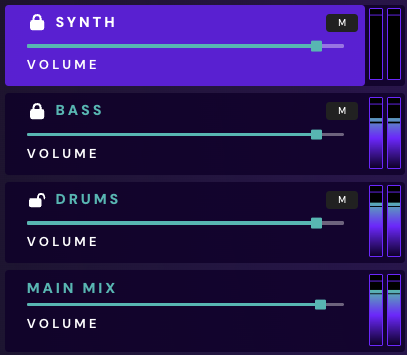
Beat Shaper also gives you control over which tracks continue to receive new material. In the track controls, click the lock icon on any track to protect it. Once a track is locked, Beat Shaper will no longer create new content for that part.This is useful when you have a bassline, drum groove, or synth idea you want to keep while continuing to explore new material around it. Lock the parts that are working, regenerate or extend the rest, and keep moving without losing the ideas you already like.
Together, these controls make Beat Shaper feel less like a one shot generator and more like a creative partner you can keep shaping. Guide the music with genre, mood, and character settings, protect the parts you like, and keep extending or regenerating until the track starts to take form.
You might also like
Enhance creativity and break through creative blocks
Supported by